# comfyui-model-manager
Download, browse and delete models in ComfyUI.
Designed to support desktop, mobile and multi-screen devices.
# Installation
There are three installation methods, choose one
1. Clone the repository: `git clone https://github.com/hayden-fr/ComfyUI-Model-Manager.git` to your ComfyUI `custom_nodes` folder
2. Download the [latest release](https://github.com/hayden-fr/ComfyUI-Model-Manager/releases/latest/download/dist.tar.gz) and extract it to your ComfyUI `custom_nodes` folder
3. Use comfy cli: `comfy node registry-install comfyui-model-manager`
## Features
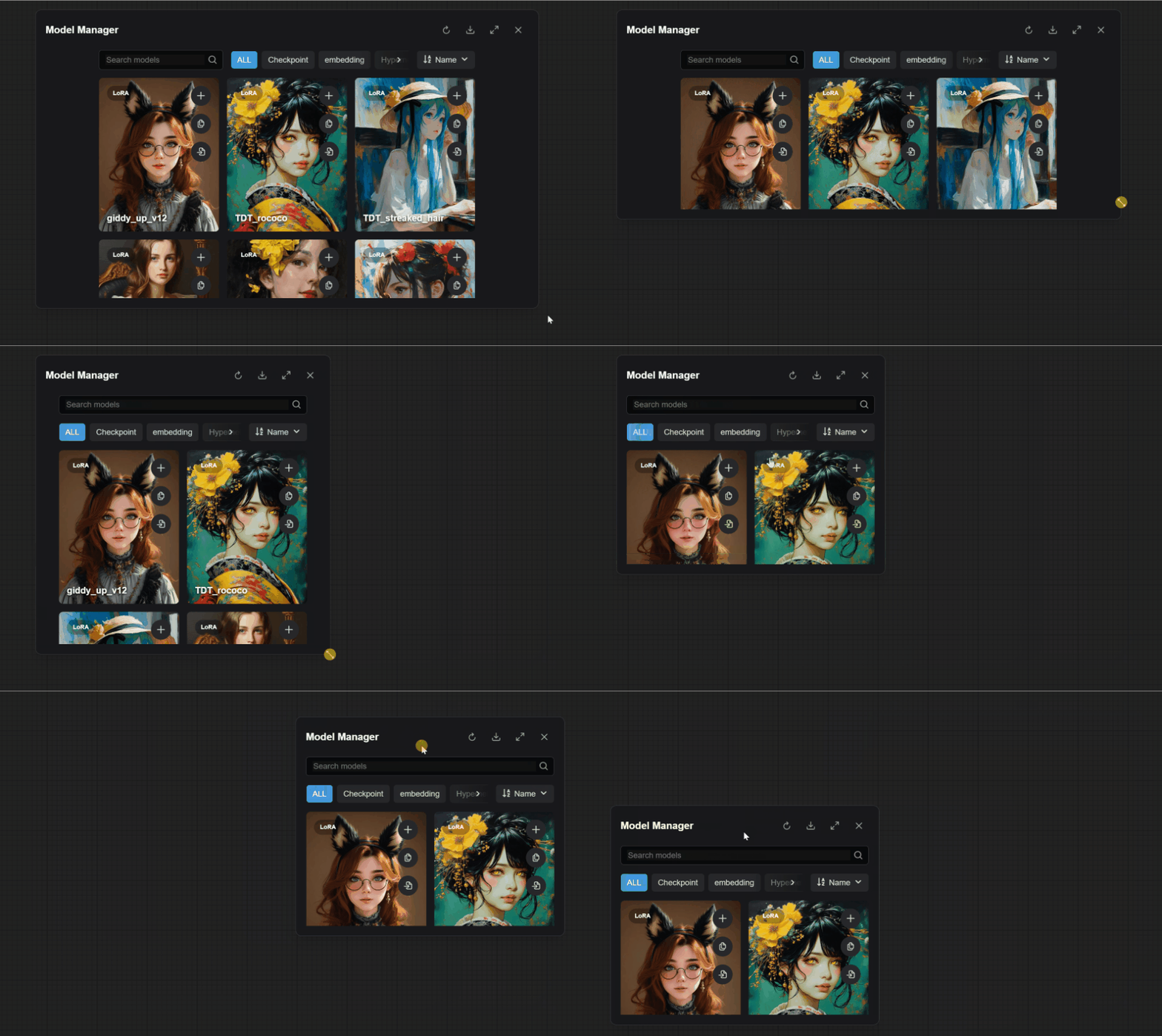
## Freely adjust size and position
 ### Support Node Graph
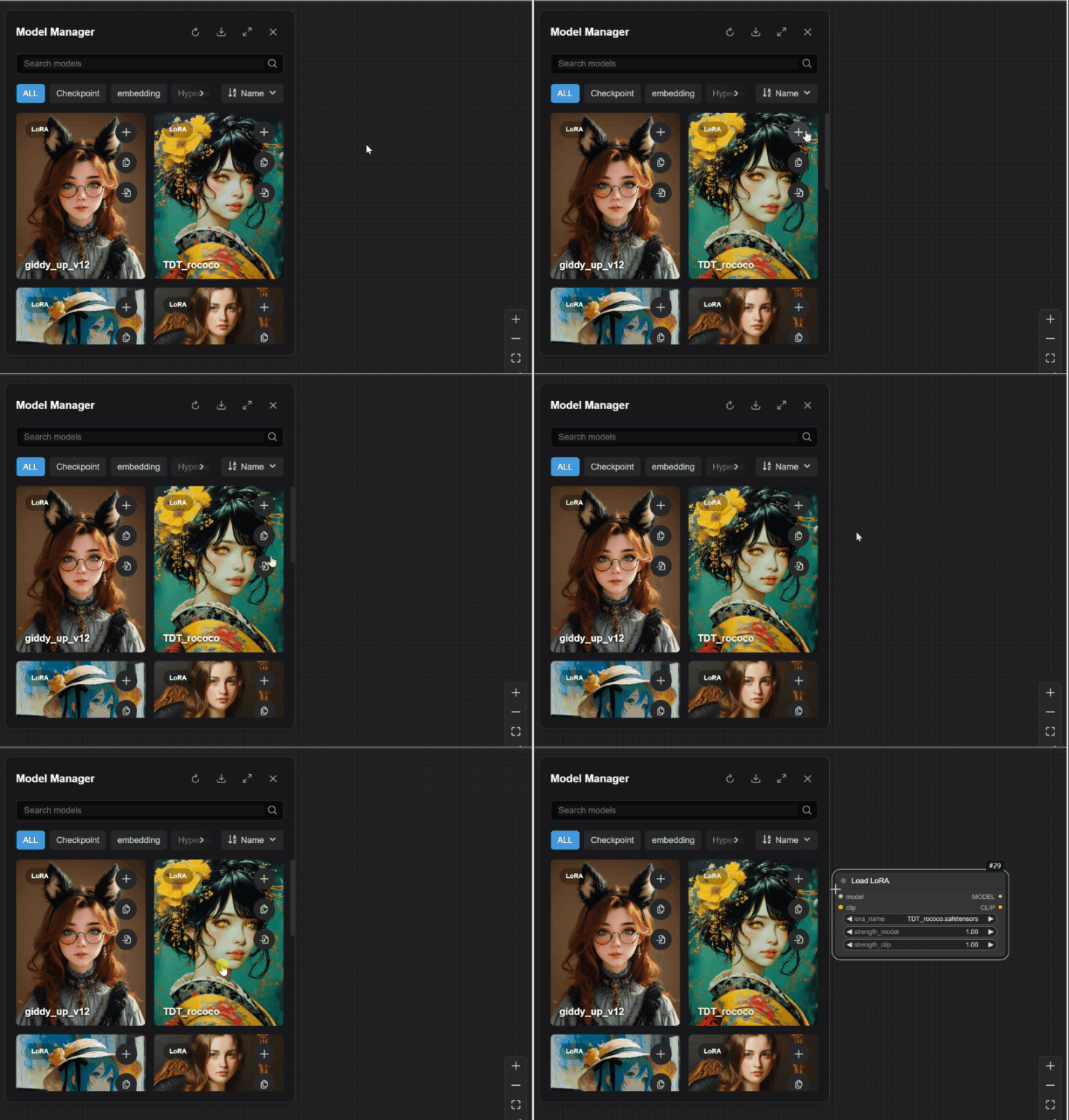 - Drag a model thumbnail onto the graph to add a new node.
- Drag a model thumbnail onto an existing node to set the input field.
- If there are multiple valid possible fields, then the drag must be exact.
- Drag an embedding thumbnail onto a text area, or highlight any number of nodes, to append it onto the end of the text.
- Drag the preview image in a model's info view onto the graph to load the embedded workflow (if it exists).
- Press the "copy" button to copy a model to ComfyUI's clipboard or copy the embedding to the system clipboard. (Copying the embedding to the system clipboard requires a secure http connection.)
- Press the "add" button to add the model to the ComfyUI graph or append the embedding to one or more selected nodes.
- Press the "load workflow" button to try and load a workflow embedded in a model's preview image.
### Download Tab
- Drag a model thumbnail onto the graph to add a new node.
- Drag a model thumbnail onto an existing node to set the input field.
- If there are multiple valid possible fields, then the drag must be exact.
- Drag an embedding thumbnail onto a text area, or highlight any number of nodes, to append it onto the end of the text.
- Drag the preview image in a model's info view onto the graph to load the embedded workflow (if it exists).
- Press the "copy" button to copy a model to ComfyUI's clipboard or copy the embedding to the system clipboard. (Copying the embedding to the system clipboard requires a secure http connection.)
- Press the "add" button to add the model to the ComfyUI graph or append the embedding to one or more selected nodes.
- Press the "load workflow" button to try and load a workflow embedded in a model's preview image.
### Download Tab
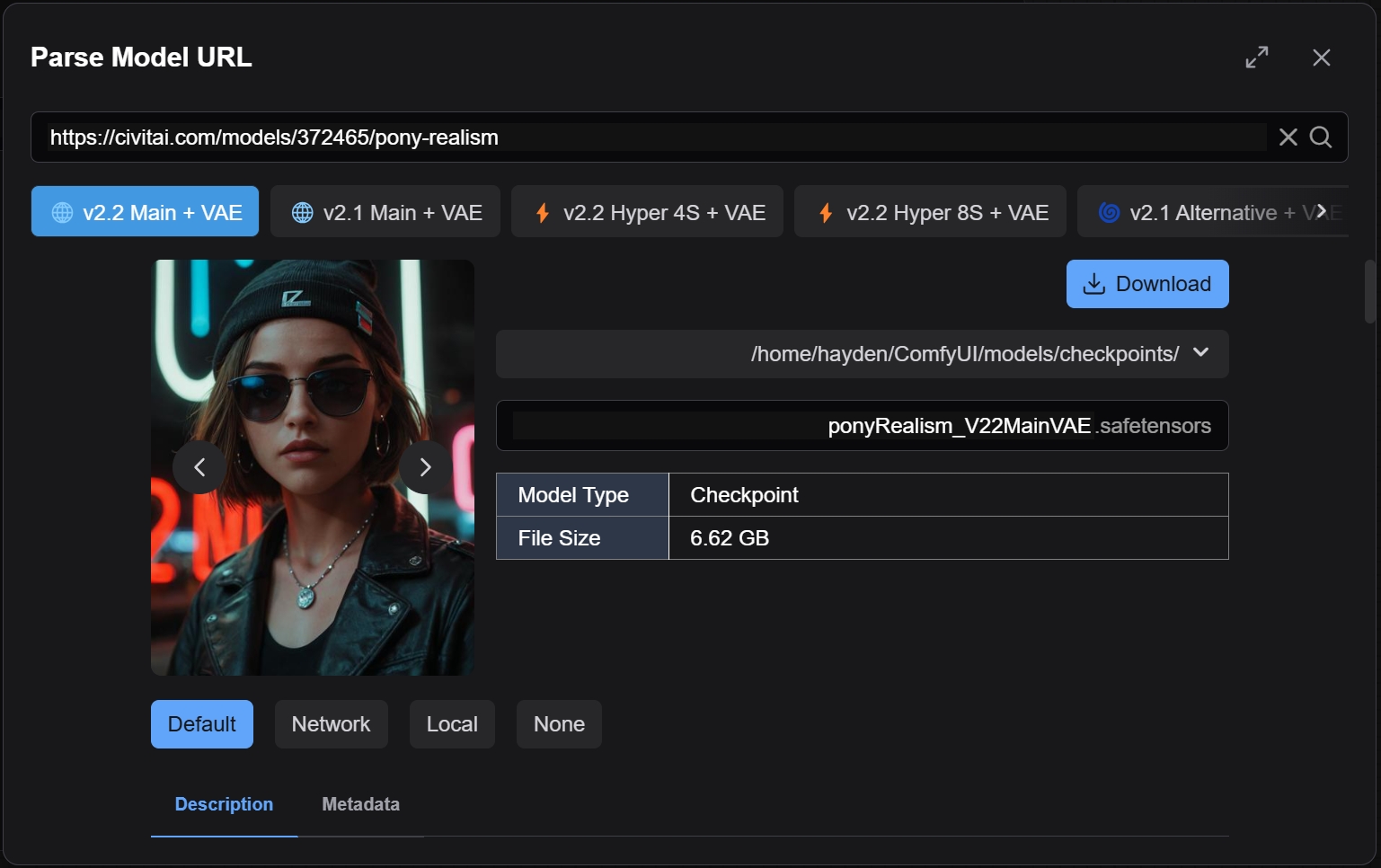 - View multiple models associated with a url.
- Select a save directory and input a filename.
- Optionally set a model's preview image.
- Optionally edit and save descriptions as a .md note.
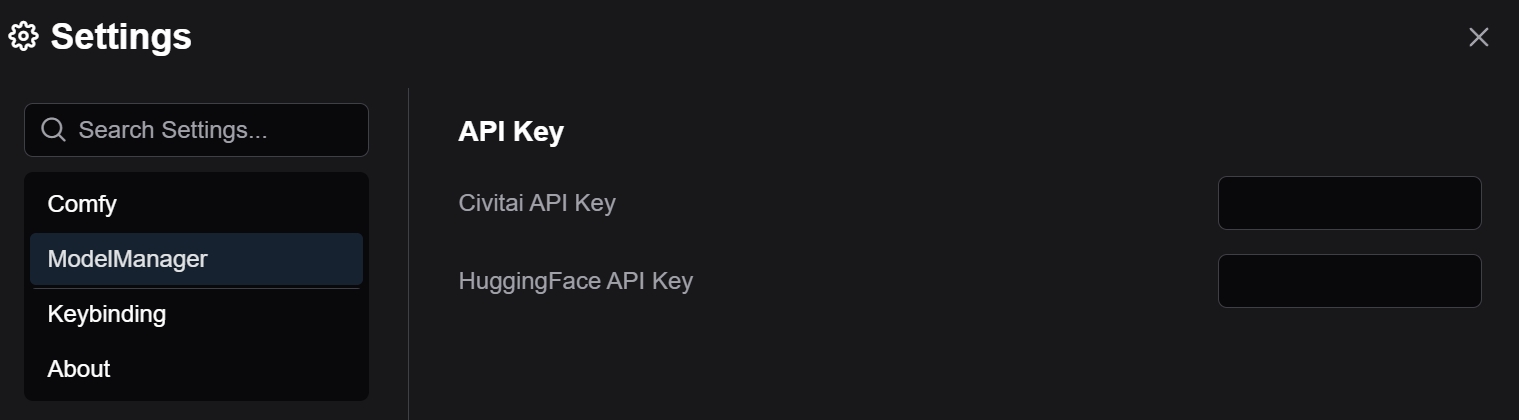
- Add Civitai and HuggingFace API tokens in ComfyUI's settings.
- View multiple models associated with a url.
- Select a save directory and input a filename.
- Optionally set a model's preview image.
- Optionally edit and save descriptions as a .md note.
- Add Civitai and HuggingFace API tokens in ComfyUI's settings.
 ### Models Tab
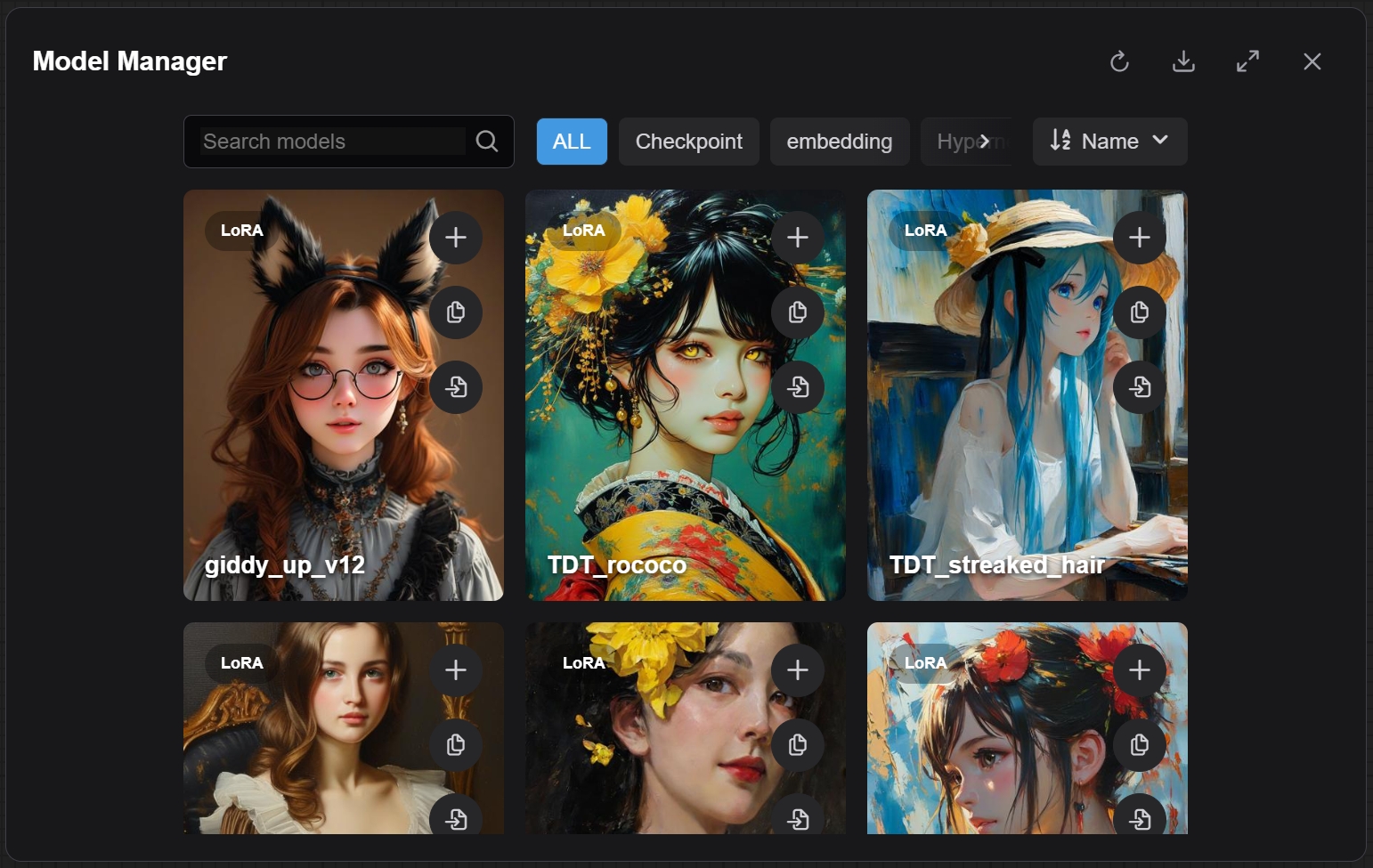 - Search in real-time for models using the search bar.
- Sort models by "Name", "File Size", "Date Created" and "Date Modified".
### Model Info View
- Search in real-time for models using the search bar.
- Sort models by "Name", "File Size", "Date Created" and "Date Modified".
### Model Info View
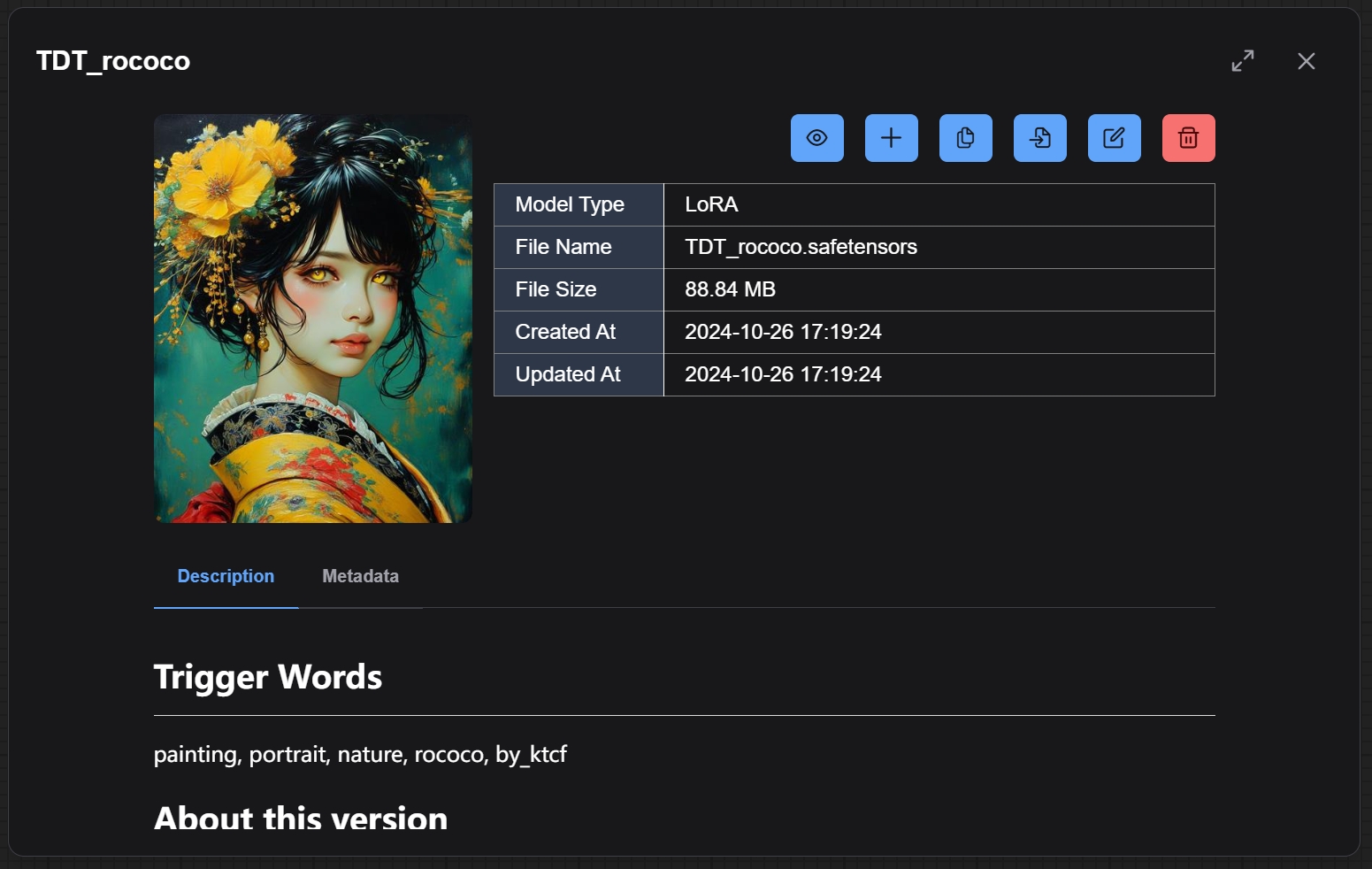 - View file info and metadata.
- Rename, move or **permanently** remove a model and all of it's related files.
- Read, edit and save notes. (Saved as a `.md` file beside the model).
- Change or remove a model's preview image.
- View training tags and use the random tag generator to generate prompt ideas. (Inspired by the one in A1111.)
### Scan Model Information
- View file info and metadata.
- Rename, move or **permanently** remove a model and all of it's related files.
- Read, edit and save notes. (Saved as a `.md` file beside the model).
- Change or remove a model's preview image.
- View training tags and use the random tag generator to generate prompt ideas. (Inspired by the one in A1111.)
### Scan Model Information
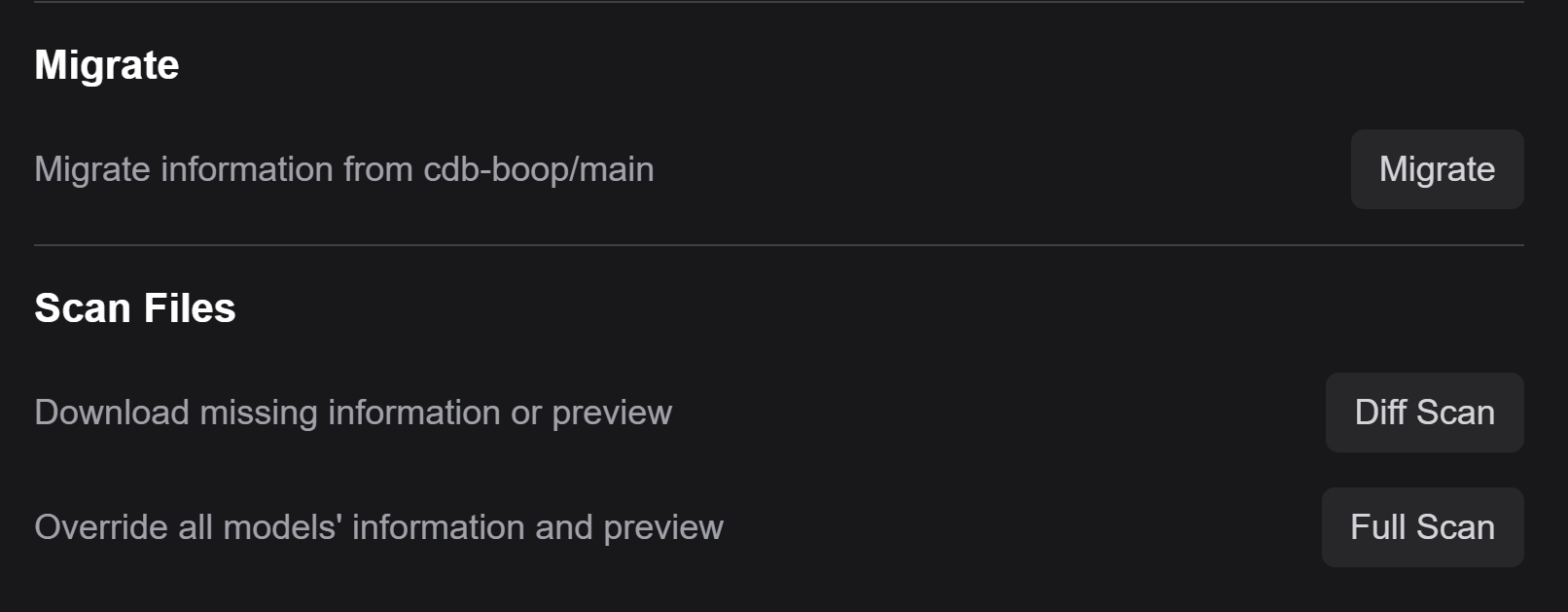 - Scan models and try to download information & preview.